
Qt for Python Quick start露
Requirements露
Before you can install Qt for Python, first you must install the following software:
Python 2.7 or 3.5+ (we recommend 3.5+),
We recommend using a virtual environment, such as venv or virtualenv
Creating and activating an environment露
You can do this by running the following on a terminal:
$ python -m venv env/       # Your binary is maybe called 'python3'
$ source env/bin/activate   # for Linux and macOS
$ env\Scripts\activate.bat  # for Windows
Installation露
Now you are ready to install the Qt for Python packages using pip.
From the terminal, run the following command:
# For the latest version on PyPi
pip install PySide2

# For a specific version
pip install PySide2==5.15.0
or:
pip install --index-url=http://download.qt.io/snapshots/ci/pyside/5.15/latest pyside2 --trusted-host download.qt.io
Test your Installation露
Now that you have Qt for Python installed, you can test your setup by running the following Python constructs to print version information:
import PySide2.QtCore

# Prints PySide2 version
print(PySide2.__version__)

# Prints the Qt version used to compile PySide2
print(PySide2.QtCore.__version__)
Create a Simple Application露
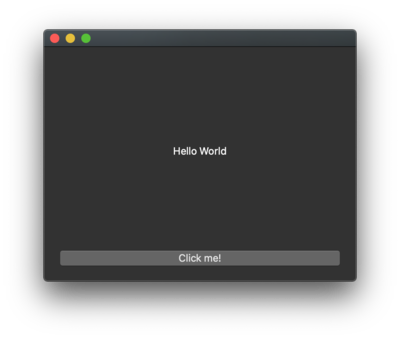
Your Qt for Python setup is ready. You can explore it further by developing a simple application that prints 鈥淗ello World鈥� in several languages. The following instructions will guide you through the development process:
Create a new file named
hello_world.py, and add the following imports to it.:import sys import random from PySide2 import QtCore, QtWidgets, QtGui
The PySide2 Python module provides access to the Qt APIs as its submodule. In this case, you are importing the
QtCore,QtWidgets, andQtGuisubmodules.
Define a class named
MyWidget, which extends QWidget and includes a QPushButton and QLabel.:class MyWidget(QtWidgets.QWidget): def __init__(self): super().__init__() self.hello = ["Hallo Welt", "Hei maailma", "Hola Mundo", "袩褉懈胁械褌 屑懈褉"] self.button = QtWidgets.QPushButton("Click me!") self.text = QtWidgets.QLabel("Hello World", alignment=QtCore.Qt.AlignCenter) self.layout = QtWidgets.QVBoxLayout() self.layout.addWidget(self.text) self.layout.addWidget(self.button) self.setLayout(self.layout) self.button.clicked.connect(self.magic) @QtCore.Slot() def magic(self): self.text.setText(random.choice(self.hello))
The MyWidget class has the
magicmember function that randomly chooses an item from thehellolist. When you click the button, themagicfunction is called.
Now, add a main function where you instantiate
MyWidgetandshowit.:if __name__ == "__main__": app = QtWidgets.QApplication([]) widget = MyWidget() widget.resize(800, 600) widget.show() sys.exit(app.exec_())
Run your example. Try clicking the button at the bottom to see which greeting you get.
漏 2022 The Qt Company Ltd. Documentation contributions included herein are the copyrights of their respective owners. The documentation provided herein is licensed under the terms of the GNU Free Documentation License version 1.3 as published by the Free Software Foundation. Qt and respective logos are trademarks of The Qt Company Ltd. in Finland and/or other countries worldwide. All other trademarks are property of their respective owners.